
K53 NEXT FOR IPHONE

Your next step. Now on iPhone.

The installable K53 Next web app brings your study material, practice tests and progress to your Home Screen.

INSTALL FROM SAFARI

A familiar app.
A few simple steps.

You install K53 Next directly from Safari. Use the app address below so that the icon opens your study app.

  1. Open the web app in Safari

    Visit app.k53next.co.za on your iPhone. You can also tap the bell inside K53 Next to see the device setup guide.

  2. Add it to your Home Screen

    Tap Share, then Add to Home Screen. Turn on Open as Web App if your iPhone shows that option, then tap Add.

  3. Open the K53 Next icon

    Launch the app from its new Home Screen icon. Choose your vehicle and start practising. Keep your first visit online while the questions and pictures download.

  4. Choose your notifications

    Tap the bell in the installed app, select Enable notifications and choose Allow when your iPhone asks. You can choose daily study reminders and app updates separately.

Open the web app
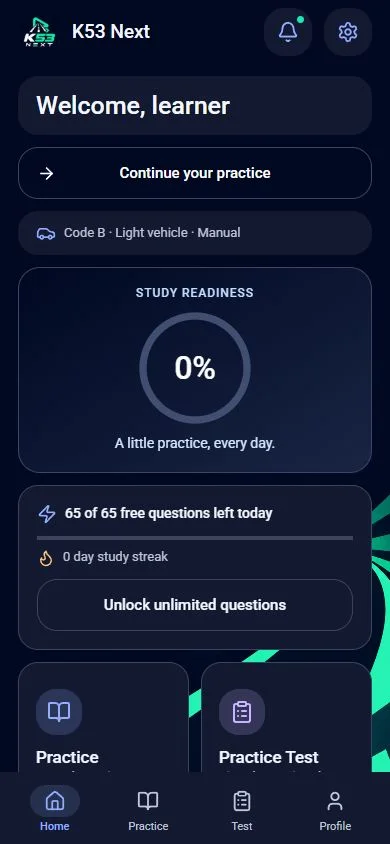
K53 Next iPhone web app with practice, tests and progress
The current K53 Next web app.
KEEP LEARNING

Made for real study days.

Questions, signs and practice tests

Study road rules, road signs and vehicle controls. Choose your topic, bookmark questions to revisit, or build test confidence with a timed or untimed mock. The app supports motorcycle, light motor vehicle and heavy motor vehicle study paths.

Offline study after setup

After the first download finishes, core questions and pictures are available offline. Account sign-in, cloud sync, content updates and notifications use the internet. Let the first installation complete before relying on offline study.

Your account and Premium

Use the same account and sign-in method as the current Android app to sync progress and restore verified Android Premium. Guest activity stays on its own device. Older Base44 web accounts remain separate and are linked from the Account screen. New web Premium purchases are not yet enabled.

Need a hand with setup?

I can’t see Add to Home Screen.

Open the app address in Safari, then check the Share menu. If you arrived through a social media app or email preview, open the link in Safari first.

I don’t see the new bell.

Close and reopen K53 Next, or refresh the page in Safari. Once the current version loads, the bell appears beside Settings.

Notifications are blocked.

Check your iPhone’s notification settings for K53 Next. Allow notifications, reopen the Home Screen app and use Send test notification from the bell. Notification permission is separate on each device.

Visit K53 Next support for account or technical help. Looking for the Android version? See both installation options.

YOUR NEXT STEP

A little practice.
More confidence.

Choose Android or the iPhone web app and start your next study session.